Appearance
Developer Tools
CatScript includes developer tools to make script development easier.
VS Code Extension
Install the CatScript extension from the VS Code Marketplace.
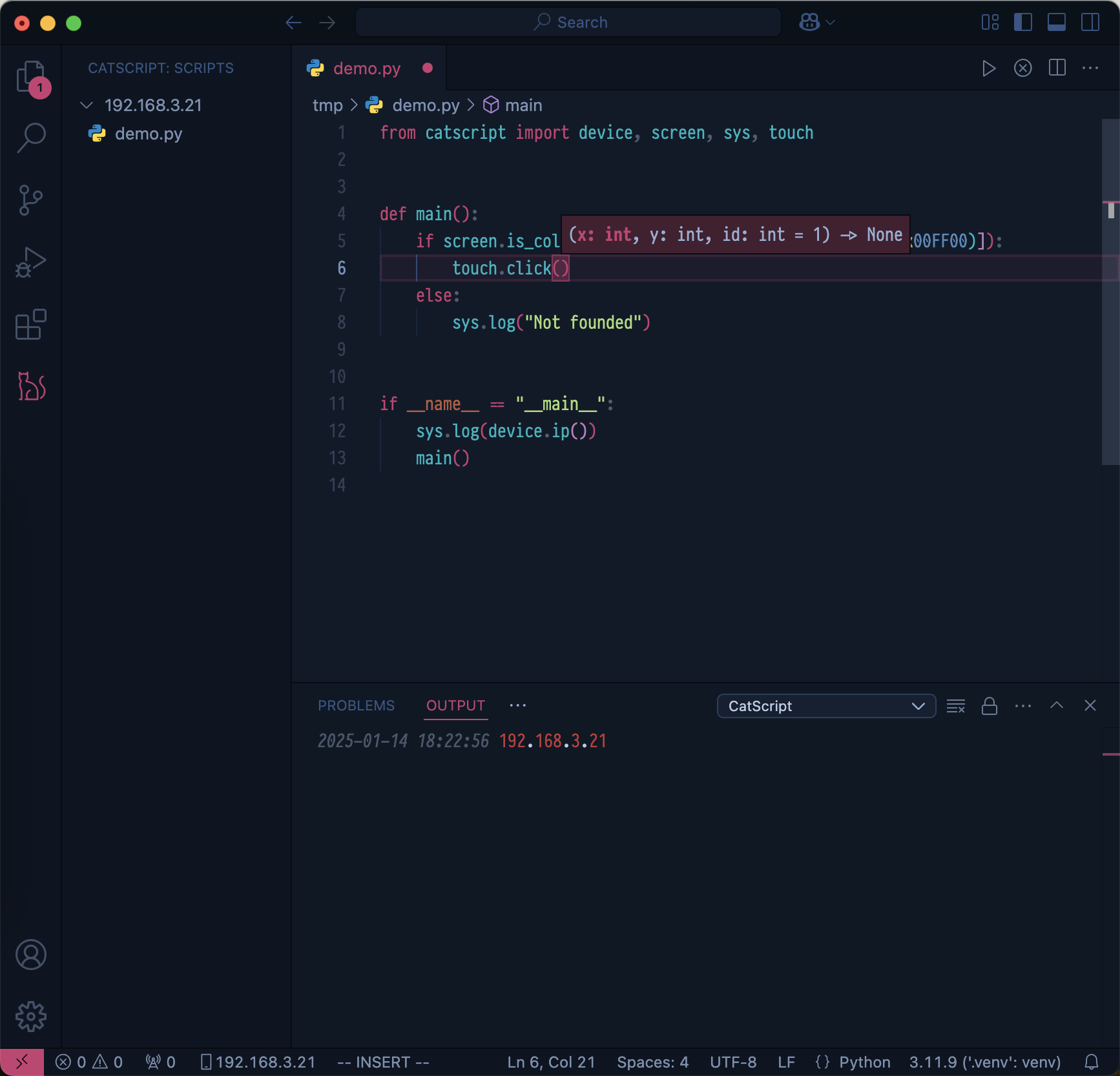
Type Hints
If you write scripts on a computer, install the catscript package to get type hints for CatScript's built-in modules. It contains type stubs only and has no runtime behavior.
shell
pip install catscriptWeb Interface
Open http://<device-ip>:5000 in a browser on your computer. The web interface provides script management, screen inspection and UI element inspection.
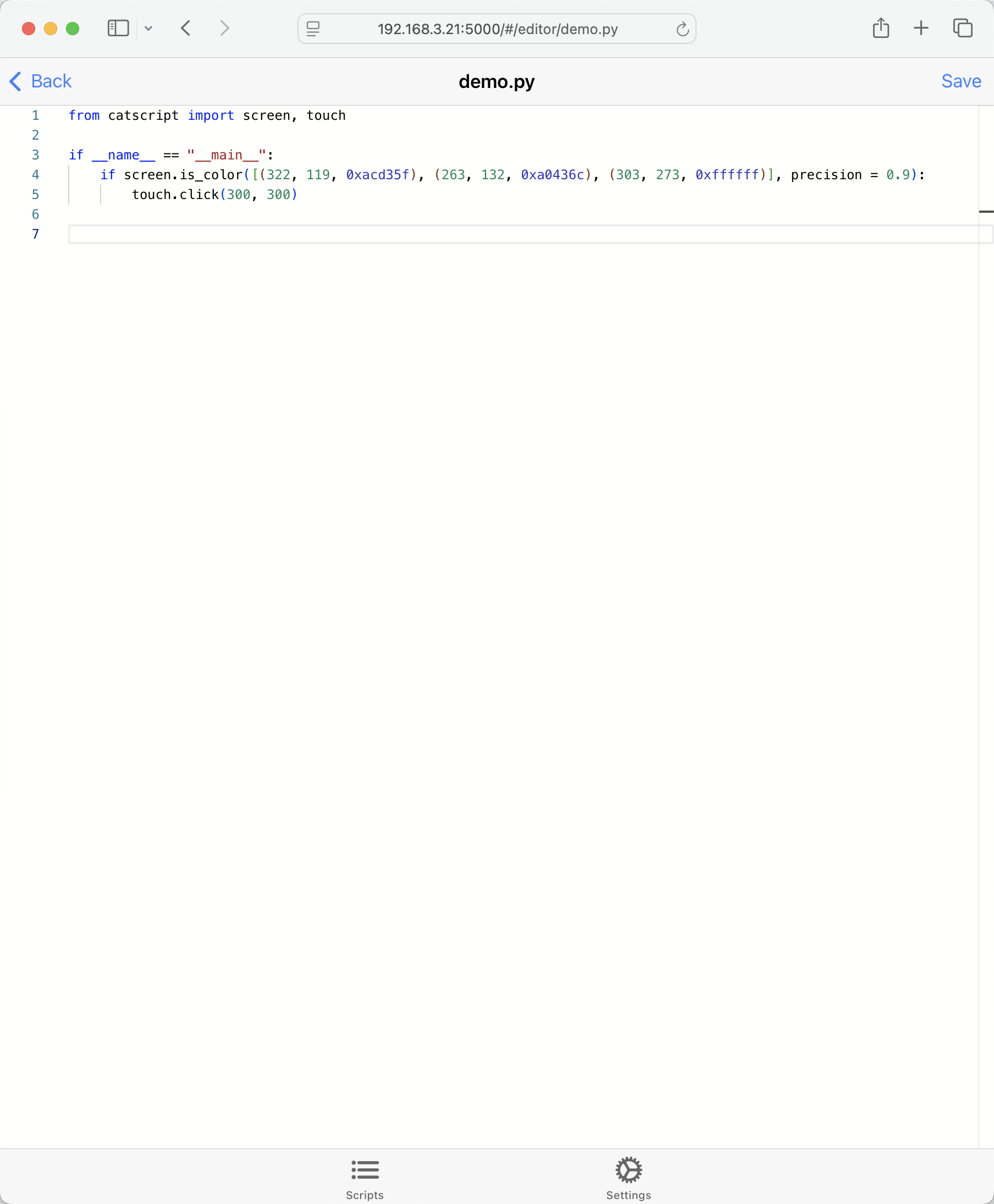
By default, the web interface is available to other devices on the same network. To restrict it to the device itself, turn off Allow LAN Access in Settings. The switch can only be changed on the device. The CatScript app keeps working because it connects to 127.0.0.1.
Settings
The Settings tab groups the developer tools together:
- Pixel Inspector for
screenpixel, coordinate and color inspection - UI Elements for the
uiaccessibility element tree - Allow LAN Access for controlling access to the web interface
The tools are described below.
Pixel Inspector
In the web interface, open Settings → Pixel Inspector. This page contains tools for working with the screen module.
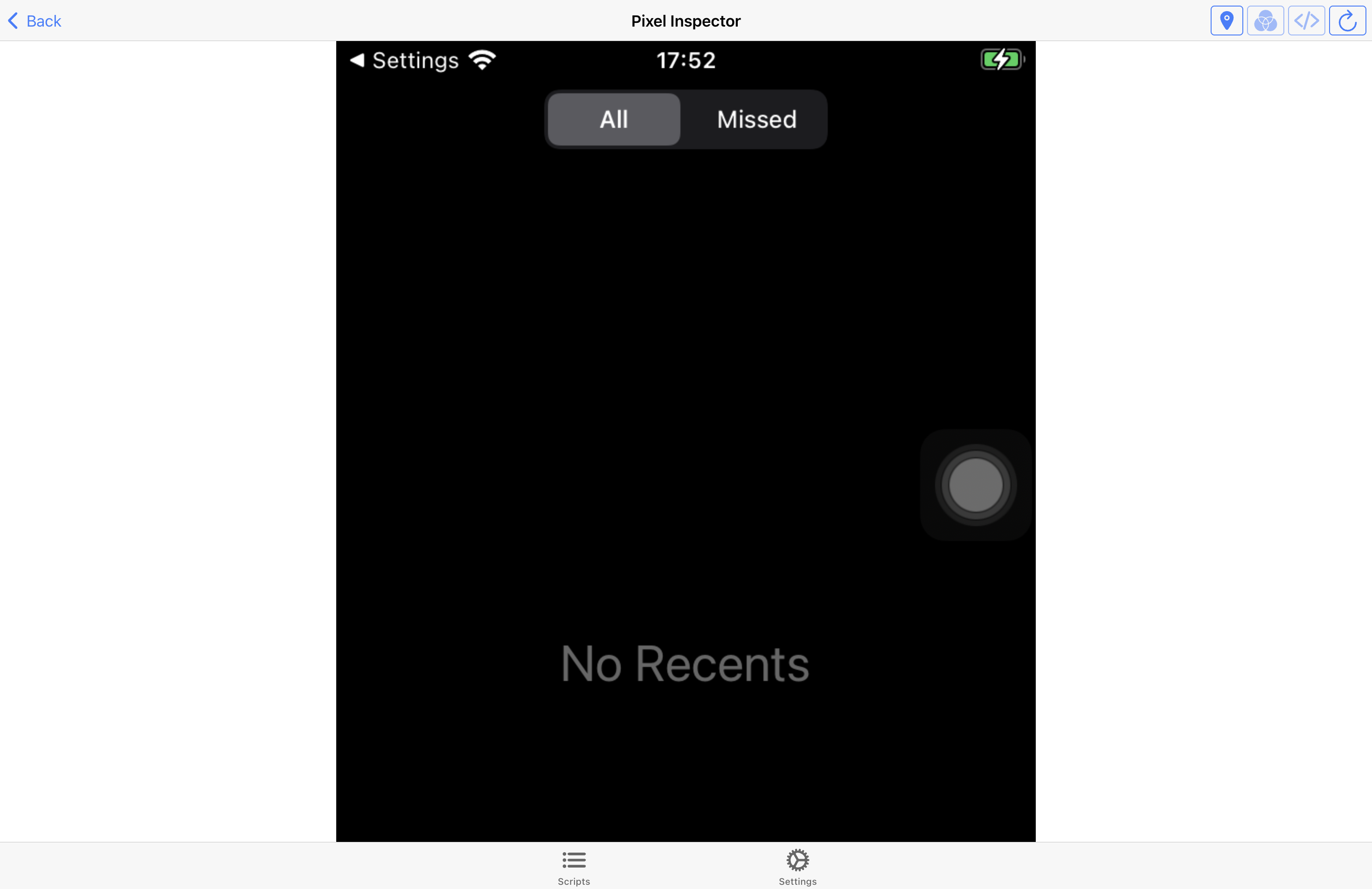
Refresh
Use the refresh button in the top-right corner, or pull down, to capture a new screenshot.
Coordinates and Colors
Hover over the screenshot to see the cursor coordinates and color in the top-right corner.
Records
Click the screenshot to record the coordinates and color at that point. Open the records with the  button in the top-right corner.
Code Templates
After recording multiple coordinates, click the  button in the top-right corner. Choose a template to generate
screen.is_color() or screen.find_color() code.
UI Elements
Open Settings → UI Elements to inspect the accessibility elements of the frontmost app. This page works with the ui module.
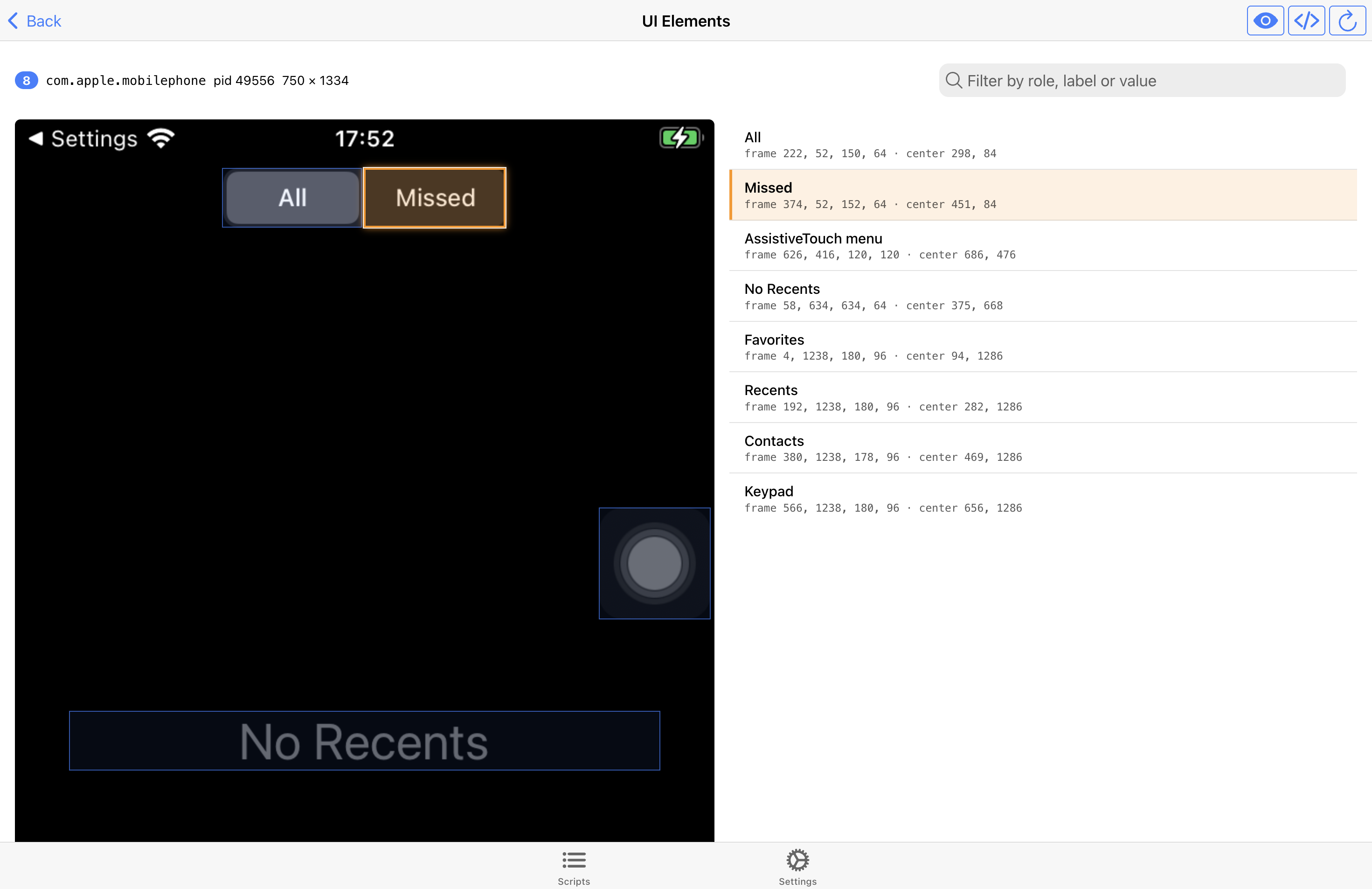
The page shows the frontmost app, its process ID, the screen size and the number of sampled elements. Each element frame is drawn over the screenshot.
The same data is available from GET /api/ui/tree.
Select an Element
Click an element box on the screenshot, or a row in the list, to select it. The selected box is highlighted in orange, and the matching row is highlighted with an orange bar. Click it again, or press Esc, to clear the selection.
Search
Use the search field to filter elements by role, label or value.
Copy Code
Select an element, then click the code button in the top-right corner to copy:
ui.find(...)ui.tap(...)ui.wait(..., timeout=10)- the selected element as JSON
- all elements as JSON
The generated selector uses label, then value, then role. Elements that only expose AXElement have no stable selector, so the menu reports that instead of generating a guess.
All coordinates are screen pixels, the same coordinate space used by touch.click() and screen.size().
Refresh
Use the refresh button or pull down to sample the frontmost app again.
WARNING
The element list is sampled by hit-testing, not a full accessibility hierarchy. It can miss elements smaller than 44×44 pt, elements covered by other views, and elements that are partially offscreen. Open the target app before refreshing; the page cannot sample SpringBoard.